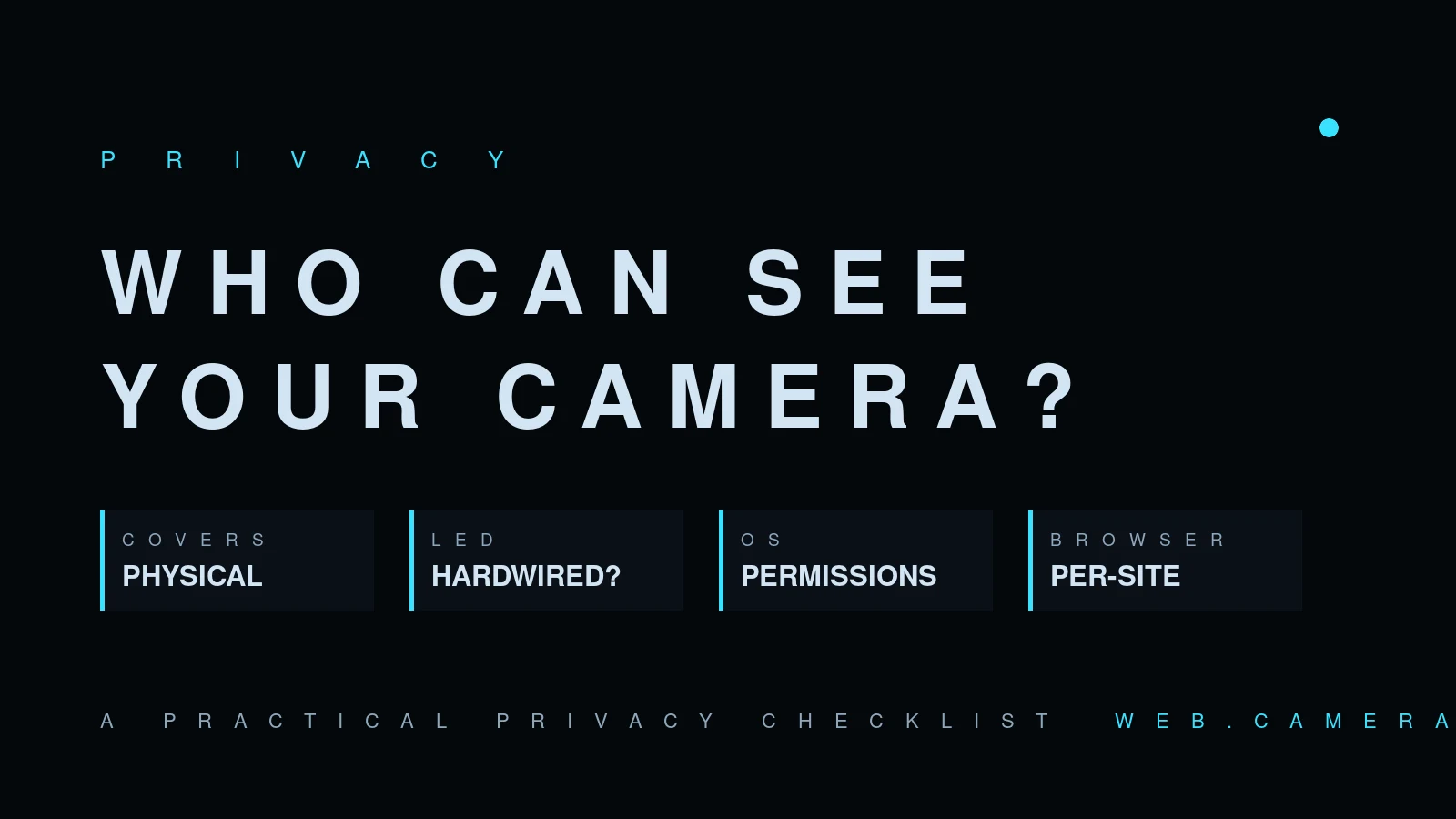
Webcam privacy: covers, lights and permissions
The tape over the laptop camera became a joke, then a habit, then a product category. Behind the joke is a legitimate question: can software watch you without the indicator light giving it away? The honest answer is "on some hardware, historically, yes" — so here is how the protection layers actually stack up, from physical to software, and what's worth doing.
The indicator light: good, not guaranteed
The reassuring design is a hardwired LED: the light sits electrically in line with the camera's power, so the sensor cannot be active while the LED is off. Apple has wired MacBook camera LEDs this way for years, and many external webcams do the same.
The weaker design is firmware-controlled: the same controller that streams video also drives the LED, and a controller can be told — or compromised — to do one without the other. Security researchers have demonstrated exactly this on older laptops. You generally can't tell which design your device uses from the outside, which is precisely why the physical layer below exists.
What you can trust the light for is the common case: catching the meeting app that kept the camera running after the call, or the site you forgot granted access. Treat it as an alarm, not a guarantee.
The physical layer: covers
A closed shutter is the one control no software bug can bypass. It's why sliding covers went from aftermarket stickers to a built-in feature — most current external webcams ship with one (our budget roundup notes it's now standard even under $30).
For laptops: use a thin slide cover (under ~1 mm) rather than a thick clip — modern lids flex, and a thick cover can press on the panel when closed. Or the zero-cost version: a bit of opaque tape. Inelegant, unbeatable.
One myth worth killing: a cover does nothing for your microphone. There is no mic shutter; the mic layers are the software ones below — and if you want to know what your mic can hear, test it.
The OS layer: permissions and global switches
Both major desktop OSes now gate camera access per app and show their own indicator when any app is capturing:
- Windows: Settings → Privacy & security → Camera. A global off switch, plus per-app toggles. Windows also shows which app used the camera last, and when.
- macOS: System Settings → Privacy & Security → Camera. Apps must request access once and can be revoked any time; an indicator appears in the menu bar area whenever capture is active.
Audit these lists occasionally — they accumulate. The app you granted camera access to in 2023 still has it.
The browser layer: per-site grants
Inside a browser, no site can touch the camera without an explicit per-site permission prompt (the getUserMedia permission model), and an in-browser indicator shows on the tab while capture runs. Grants persist per site: review them in the padlock/tune icon next to the address bar, and revoke freely — the site simply asks again next time. If a site should have access but the picture never appears, that same permission stack is the usual culprit; the fixes are in webcam not working: browser permissions.
This layered model is also why a browser-based check is a privacy-friendly way to inspect your own hardware: our webcam test runs entirely in the page — the stream goes from your camera to your screen, and nothing is uploaded.
Signs something is actually using your camera
Beyond the LED, the OS will tell you — if you know where it surfaces the information. Windows lists "recently used" apps under the camera privacy page and shows a camera glyph in the system tray during capture; macOS shows an indicator whenever any process has the camera, and Control Center names the app. In browsers, the tab carries a recording badge, and the address-bar icon enumerates exactly which device each site holds. If an app or tab you don't recognize appears there, revoke first and investigate second — revoking is instant and costs nothing.
External webcams add the bluntest control of all: the plug. A USB camera that's unplugged has no firmware, no permission, and no debate. If your camera use is occasional and your threat model serious, a $25 external camera you connect on demand is a stronger position than any software setting on a built-in — and per the measurements, it'll produce a better image while it's at it.
The sane setup, in four moves
- Cover or shutter closed when you're not on a call — the only bug-proof layer.
- Trust the LED as an alarm: light on unexpectedly → close the lid first, investigate second.
- Audit OS camera permissions once in a while; keep the per-app list short.
- Review browser per-site grants the same way, and deny by default for sites you don't recognize.
None of this requires paranoia. It's the same posture as locking your door: cheap layers, each covering the failure mode of the one above.